 Rewards Card
Guide
From setting up your family to the first reward, one step at a time.
Get started
On the parent’s phone. It takes about 3 minutes.
-
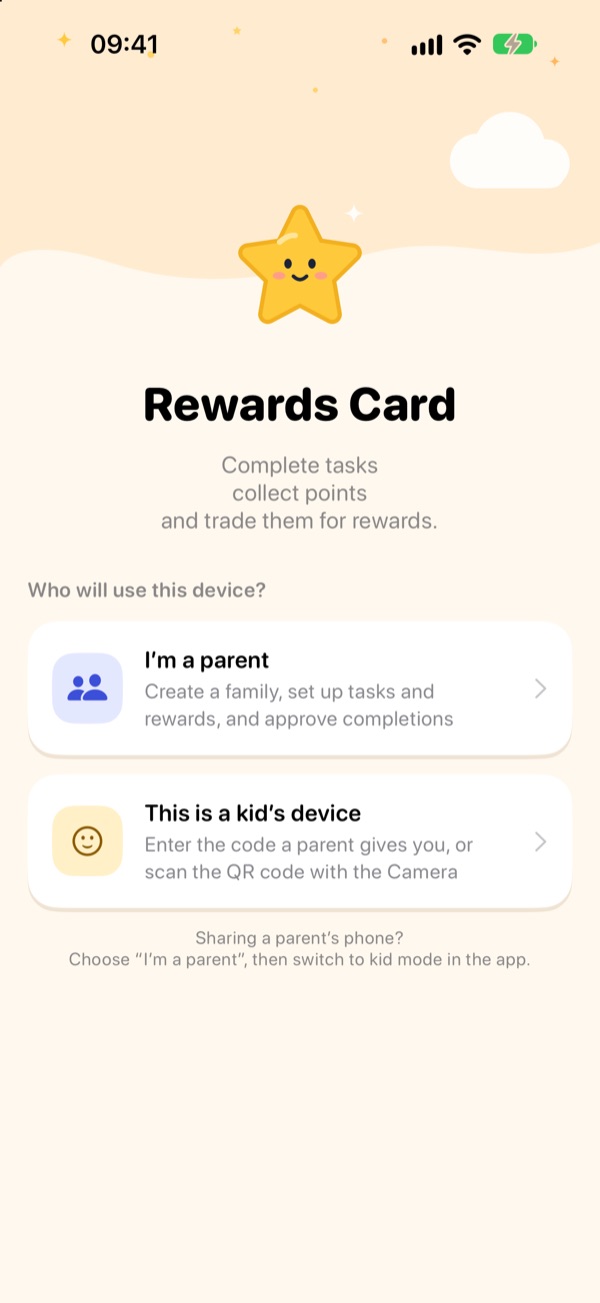
Download Rewards Card and choose “I’m a parent”
Download Rewards Card from the App Store, open it, and choose “I’m a parent”.
-
Sign in
Sign in with Apple, or enter your email, tap Send Code, and enter the 6-digit code.
-
Create your family
Give your family a name and tap Create Family. If another parent already set one up, use Join Family and enter their invite code.
-
Add your kids
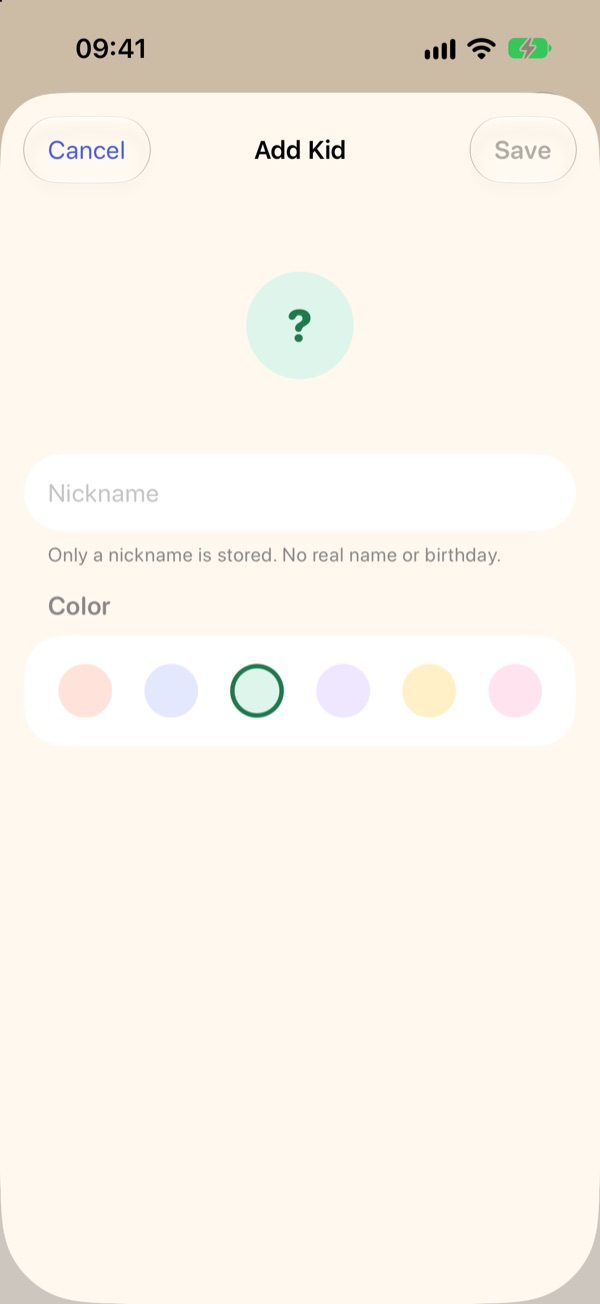
On the Kids tab, tap + at the top right, enter a nickname, pick a color, and tap Save. A nickname is all we need, no real names or birthdays.
-
Set a parent PIN
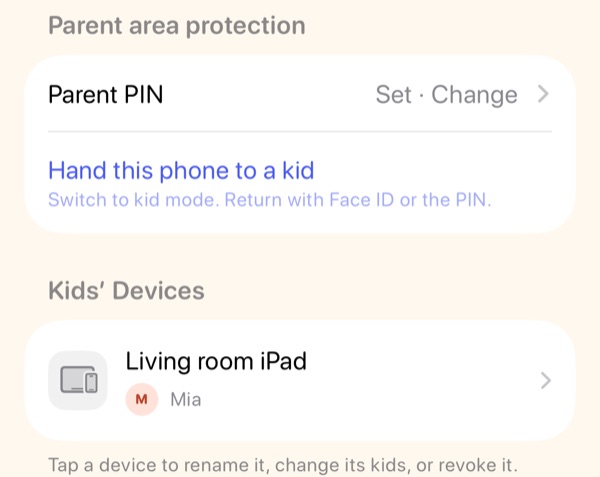
In Settings › Parent area protection, tap Parent PIN and set a 6-digit PIN. You need it to open the parent area on a kid’s device and to hand your phone to a kid.
Set up tasks and rewards
Start with 3 to 5 simple tasks. Add more later.
-
Add a task
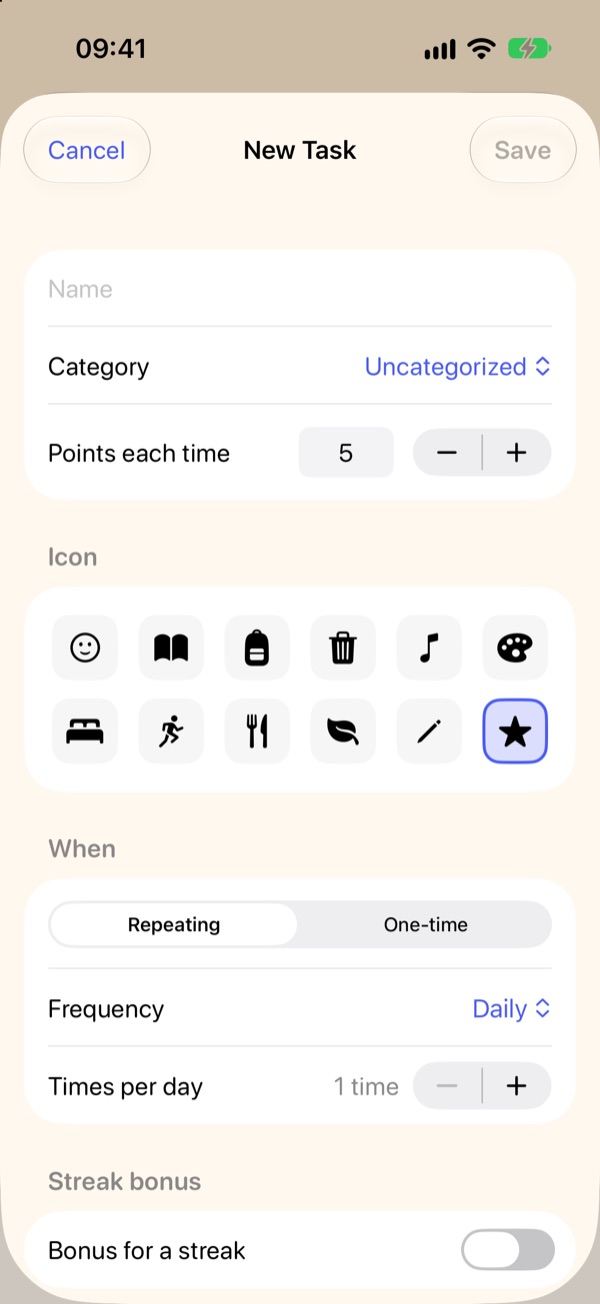
On the Tasks tab, tap + at the top right. Enter a name, set Points each time, pick an icon, and choose the frequency: Daily, Weekly, Some days, or One-time. Turn on Bonus for a streak to give extra points for doing it several times in a row.
-
Add a reward
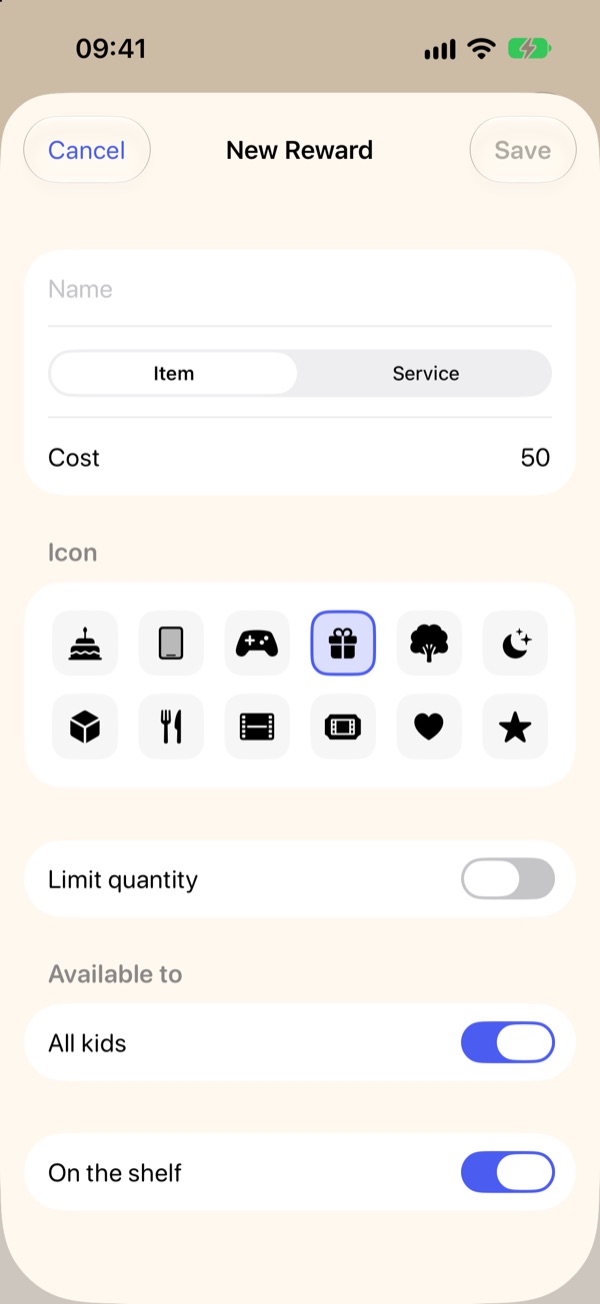
On the Rewards tab, tap + at the top right. Enter a name and the points it costs, then choose Item or Service. Turn on Limit quantity, or choose who it’s Available to.
Kids with their own iPhone or iPad
Pair each device once. Kids don’t need an account.
-
Open the kid’s page
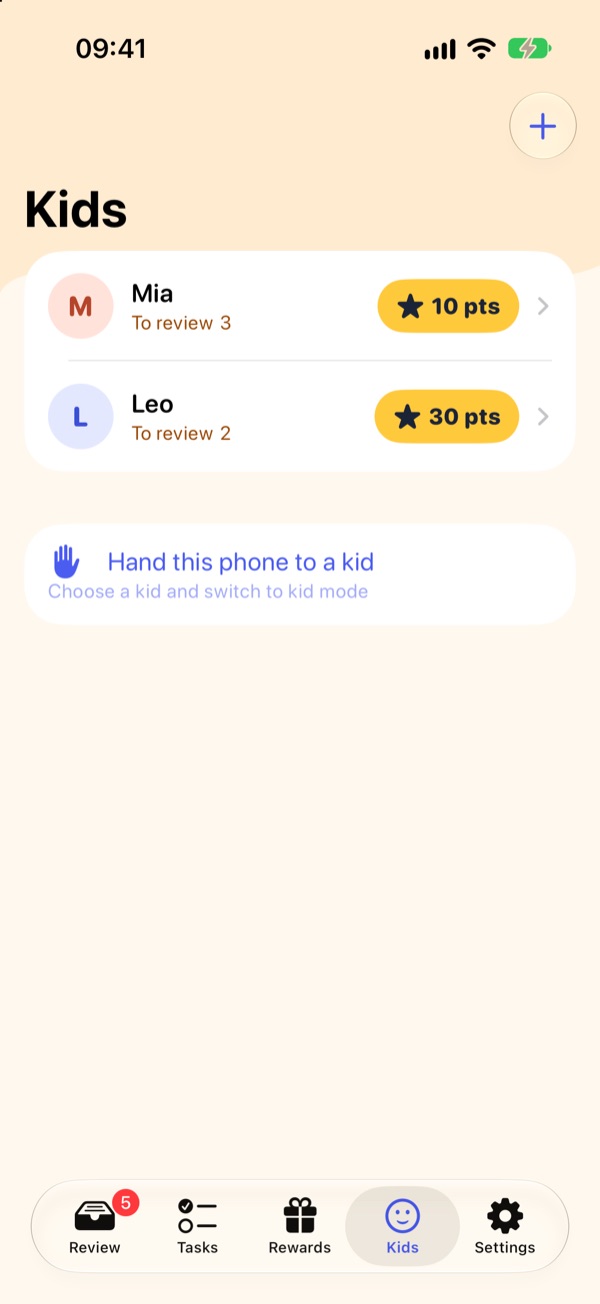
On the parent’s phone, open the Kids tab and tap the kid you want to pair.
-
Create a pairing code
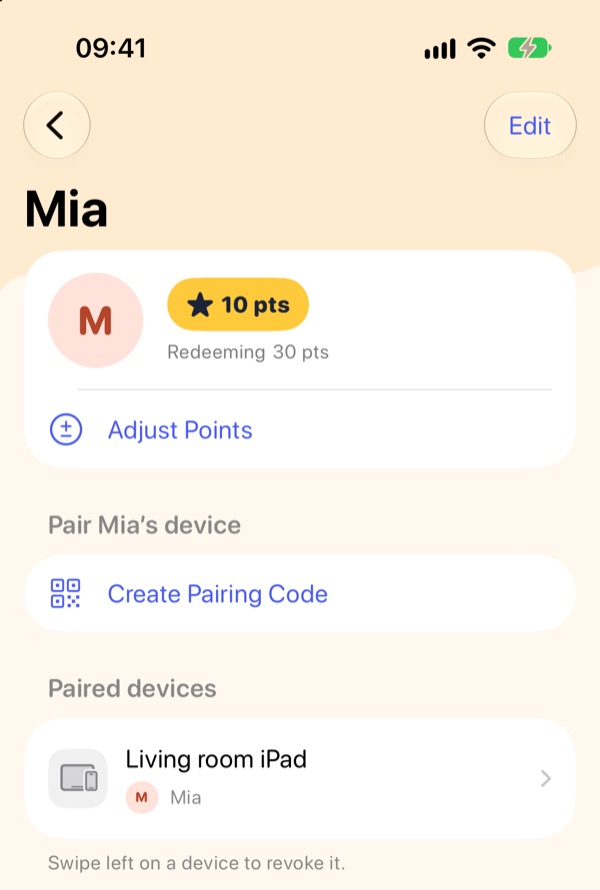
On the kid’s page, tap Create Pairing Code.
-
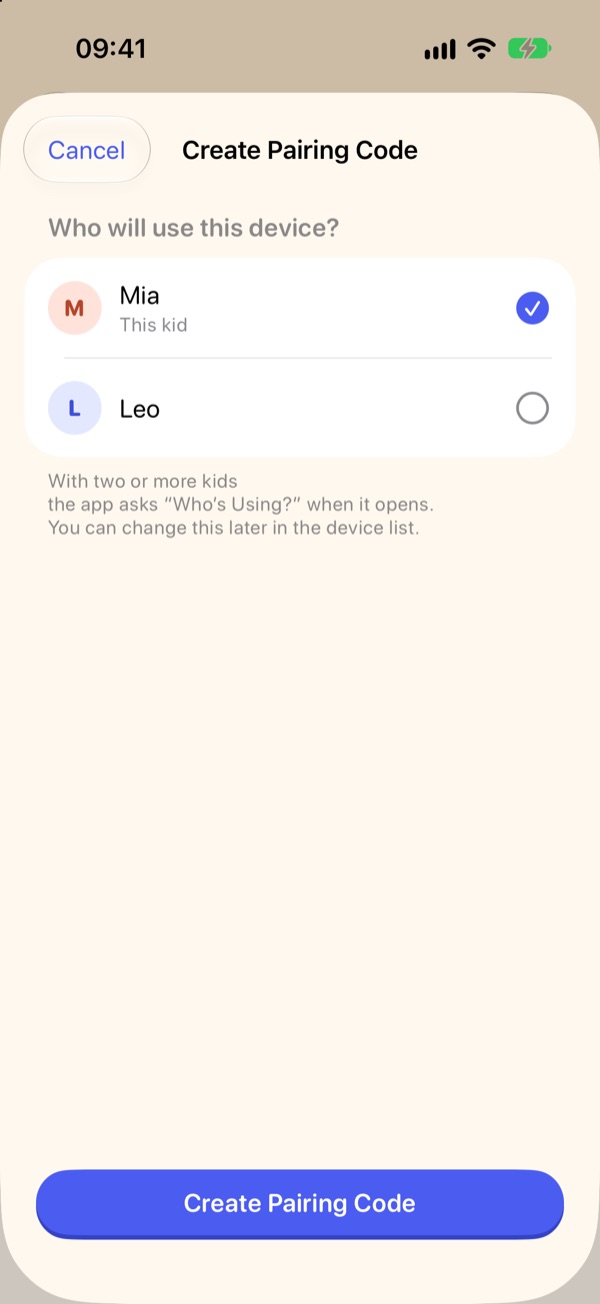
Choose who uses this device
For one kid, keep This kid checked and tap Create Pairing Code. You’ll see a QR code and an 8-character code. It works once, for 10 minutes.
-
On the kid’s device, choose “This is a kid’s device”
Install Rewards Card on the kid’s iPhone or iPad, open it, and choose “This is a kid’s device”.
-
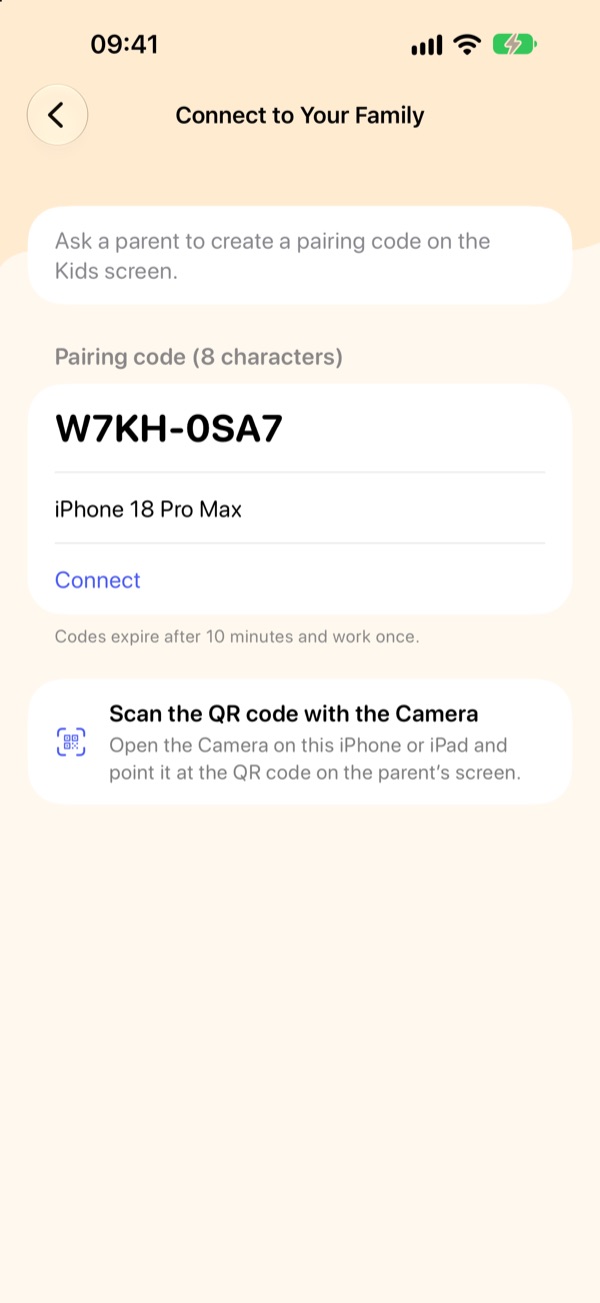
Scan the QR code or enter the code
Point the Camera app at the QR code on the parent’s screen to open Rewards Card, or type the code in the app and tap Connect.
Siblings sharing one tablet
One device can be used by several kids, and switching needs no parent PIN. Both the parent’s and the kids’ app need version 1.2 or later.
-
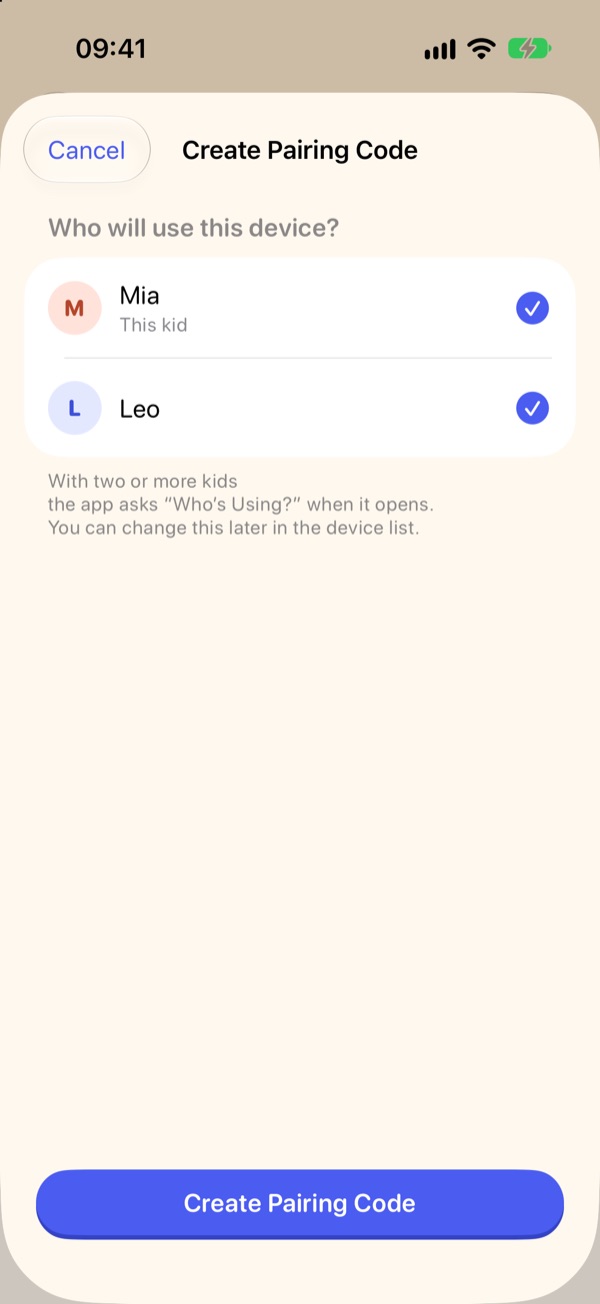
Check every kid who shares it
Create a pairing code as above, and under Who will use this device? check two or more kids. Then tap Create Pairing Code.
-
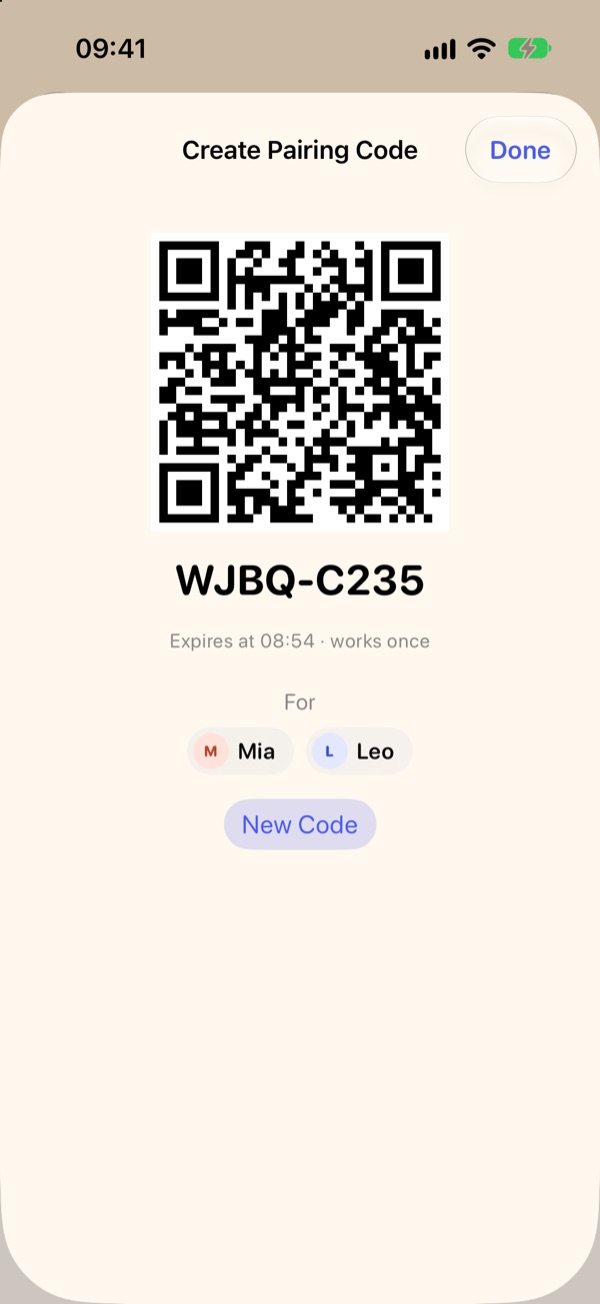
Pair the tablet
The pairing code screen lists the kids who will use this device. Scan the QR code with the tablet, or enter the code.
-
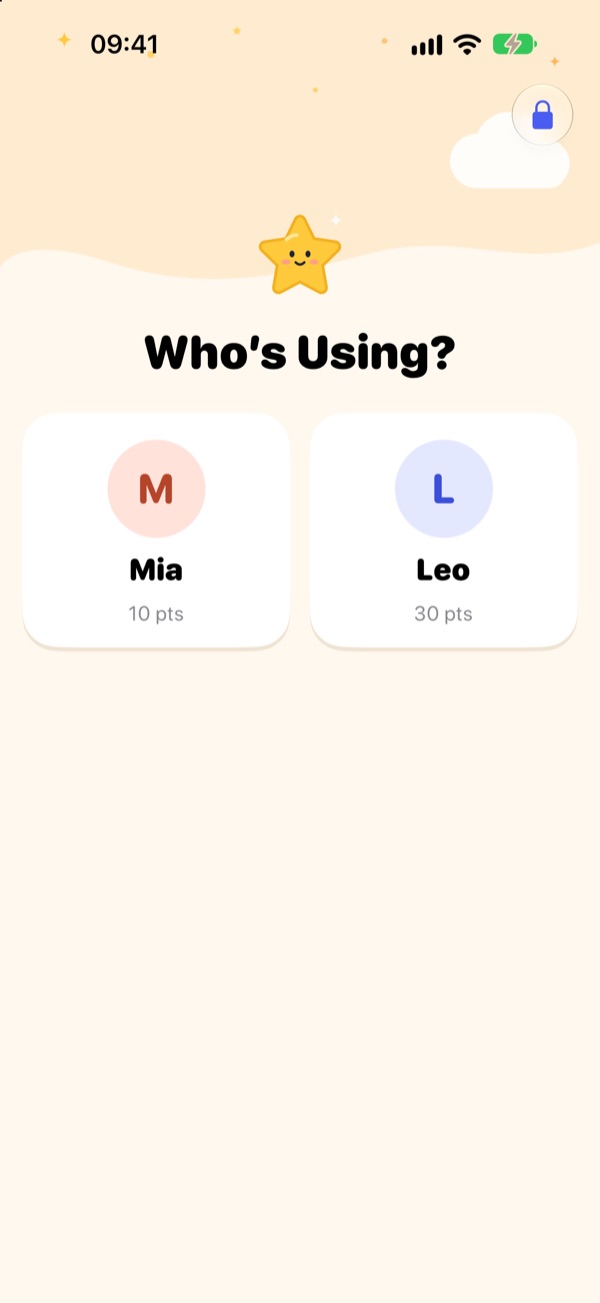
Kids tap their own picture
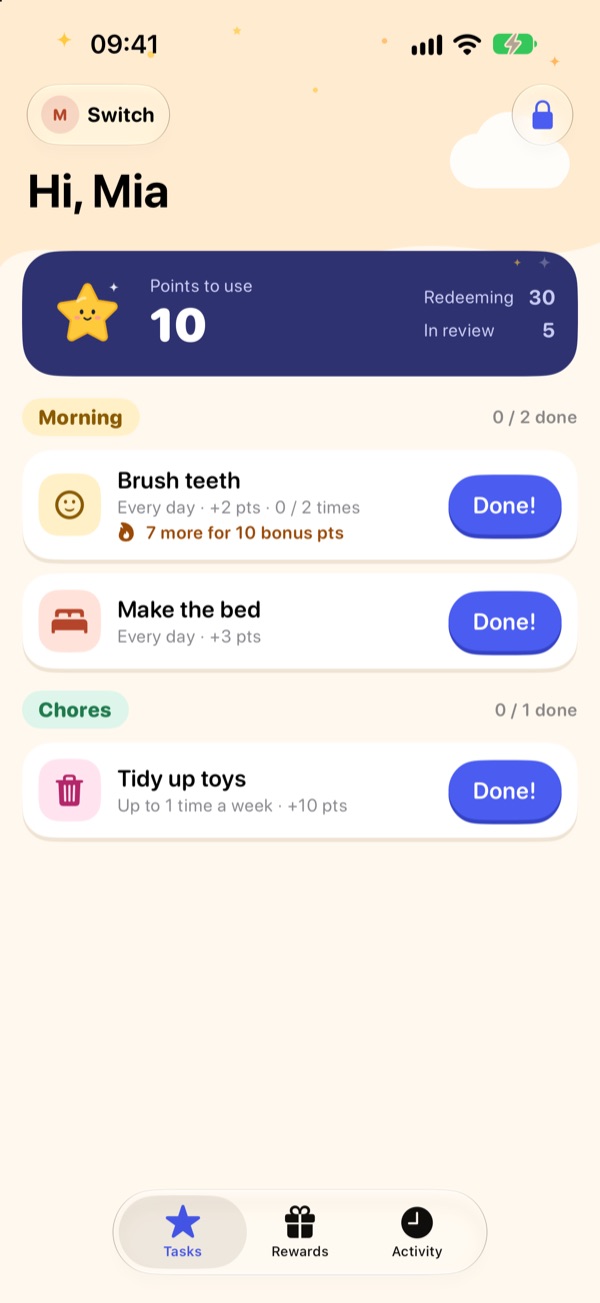
When the tablet opens Rewards Card, it asks Who’s Using? Each kid taps their own picture to see their tasks.
-
Switch kids
Tap Switch at the top left to change kids, no parent PIN needed. After 5 minutes away from the app, it asks again.
Add another kid to a paired device
If a tablet is already paired to one kid, another kid can share it without pairing again.
-
Open Kids’ Devices
On the parent’s phone, open Settings, scroll down to Kids’ Devices, and tap the tablet.
-
Check the kid to add
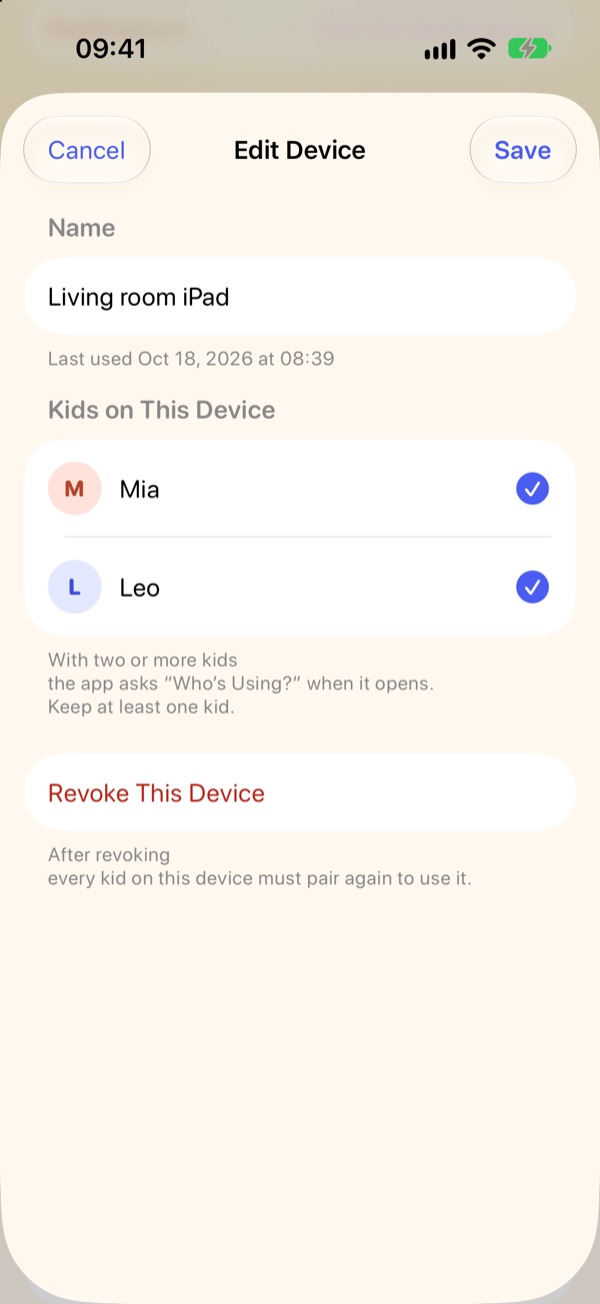
Under Kids on This Device, check the kid to add and tap Save. You can rename the device here too.
-
Check the device list
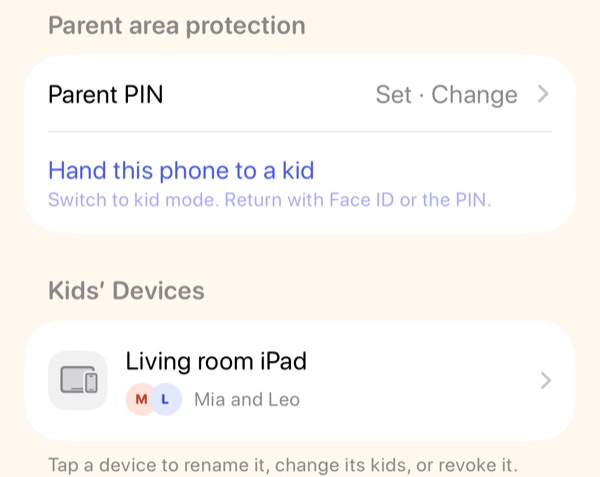
Kids’ Devices shows which kids use the tablet.
-
Open Rewards Card on the tablet
The next time the tablet opens or returns to Rewards Card, a Switch button appears at the top left. Tap it to see Who’s Using?
Kids using the parent’s phone
If a kid has no device of their own, switch your phone to kid mode.
-
Choose a kid
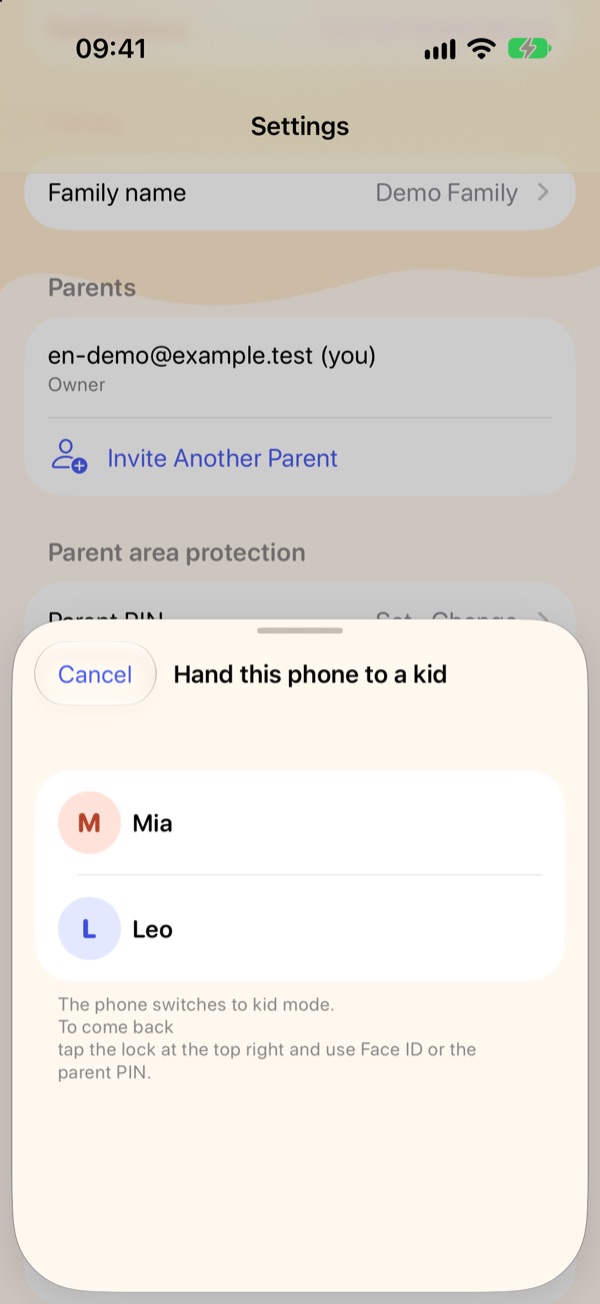
Set a parent PIN first. In Settings, tap Hand this phone to a kid and choose a kid. Your phone switches to kid mode.
-
Get back to the parent area
Tap the lock at the top right and use Face ID or the parent PIN.
Every day
Kids mark tasks done, and points arrive when you approve.
-
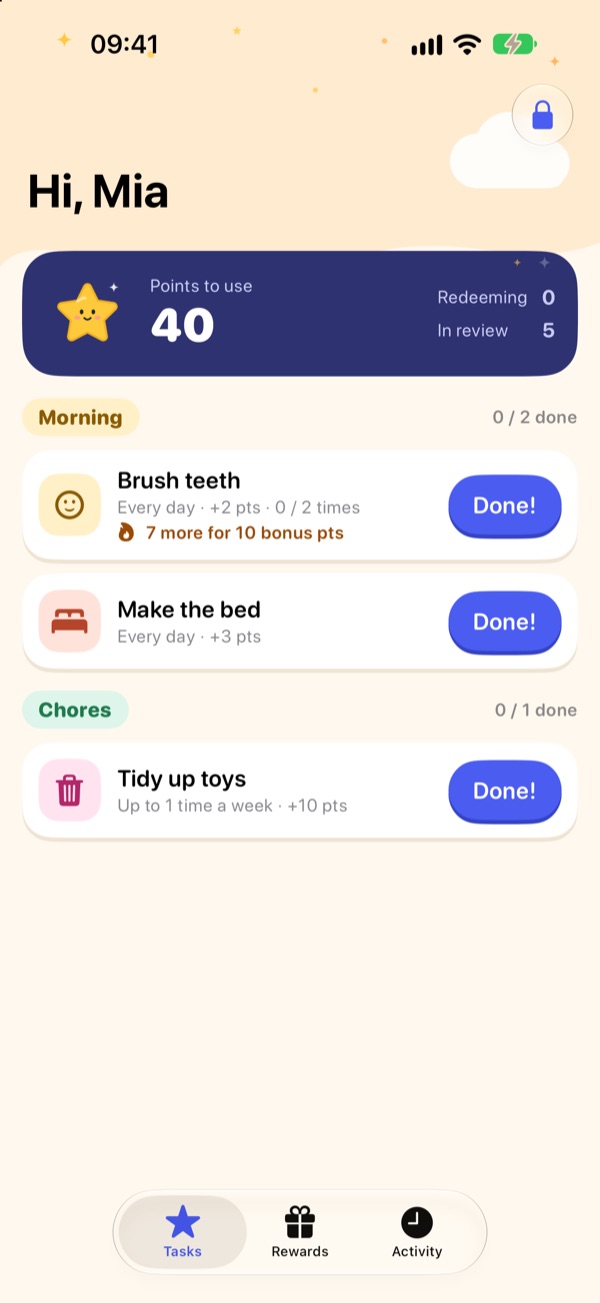
The kid taps Done!
When a task is finished, the kid taps Done! and it goes to the parent for review.
-
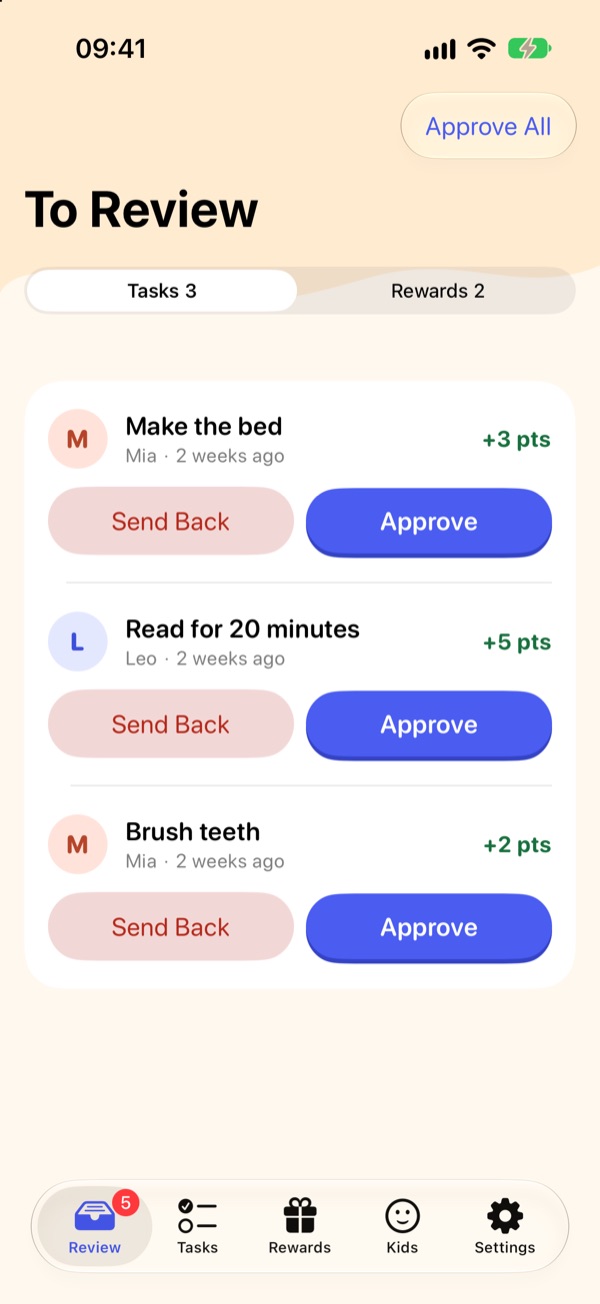
The parent approves
On the parent’s Review tab, tap Approve to give the points right away, or Send Back if it isn’t done. With several waiting, tap Approve All.
-
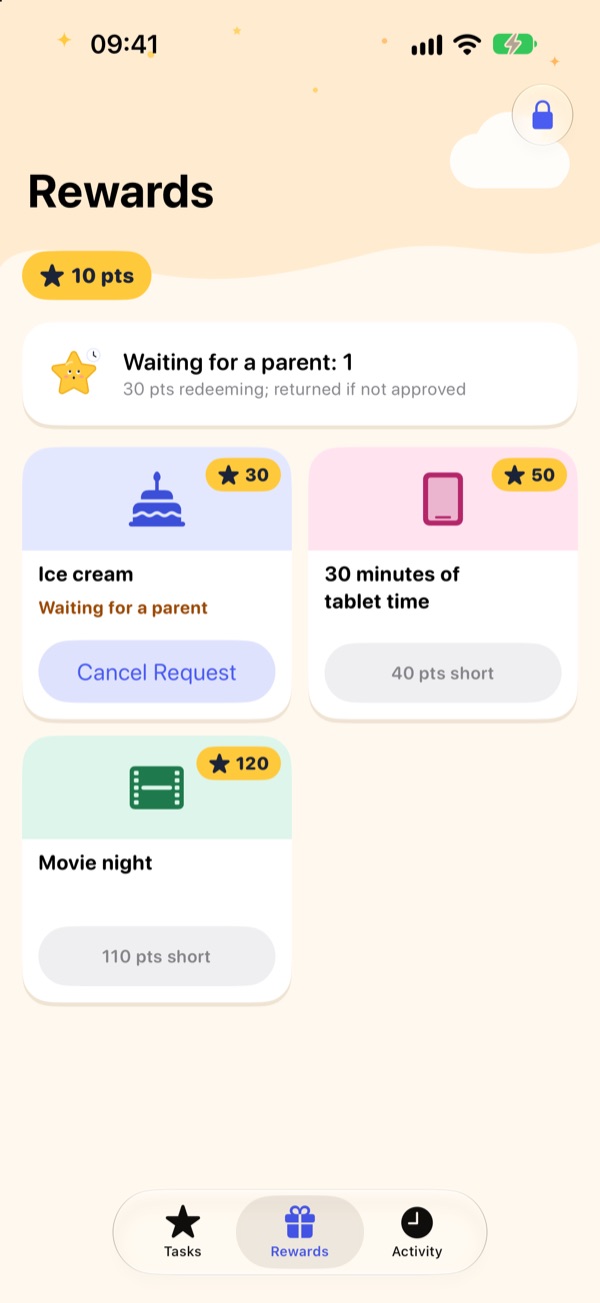
The kid asks for a reward
With enough points, the kid opens the Rewards tab, taps a reward, and waits for the parent to agree.
-
Approve it, then hand it over
On the Review tab, switch to Rewards and tap Approve. Rewards you haven’t handed over stay in Not Given Yet as a reminder. Tap Given once the kid has it.
Parent area protection
Kids can’t open parent features, even on their own device.
-
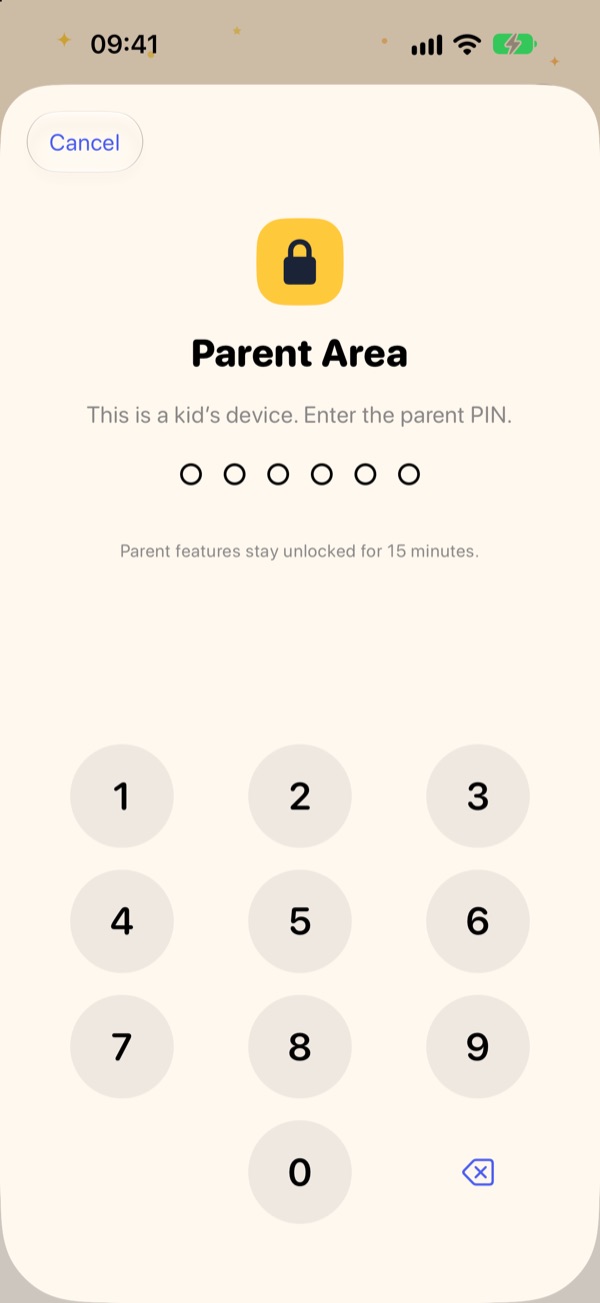
Open the parent area on a kid’s device
Tap the lock at the top right and enter the parent PIN to use parent features for 15 minutes. After 5 wrong tries in a row, it locks for 15 minutes.
-
Forgot the parent PIN
Sign in to Rewards Card on your own phone and set a new PIN in Settings.
More features
Turn these on when you need them.
Invite another parent
In Settings, tap Invite Another Parent to create an invite code. It works for 72 hours. The other parent signs in, chooses Join Family, and enters the code.
Notifications
Parents get a notification when a kid marks a task done or asks for a reward. Kids get one when you approve.
Revoke a lost device
In Settings › Kids’ Devices, tap the device and choose Revoke This Device. It stops working right away.
Adjust points
On a kid’s page, tap Adjust Points to add or remove points with a note.
Themes and Zhuyin
In Settings, choose the Starry Night or Marshmallow theme. Turn on Zhuyin on kid screens to show Bopomofo next to Chinese text.
Delete your account
In Settings, choose Delete Account. If you are the owner and other parents remain, transfer ownership or delete the whole family first.
Still have questions?
Check the FAQ first. If you can’t find an answer, email us.